
Pular para o conteúdo

Changelog

New updates and improvements at Cloudflare.

New Applications Added to Zero Trust

42 new applications have been added for Zero Trust support within the Application Library and Gateway policy enforcement, giving you the ability to investigate or apply inline policies to these applications.

33 of the 42 applications are Artificial Intelligence applications. The others are Human Resources (2 applications), Development (2 applications), Productivity (2 applications), Sales & Marketing, Public Cloud, and Security.

To view all available applications, log in to your Cloudflare Zero Trust dashboard, navigate to the App Library under My Team.

For more information on creating Gateway policies, see our Gateway policy documentation.
New Access Analytics in the Cloudflare One Dashboard

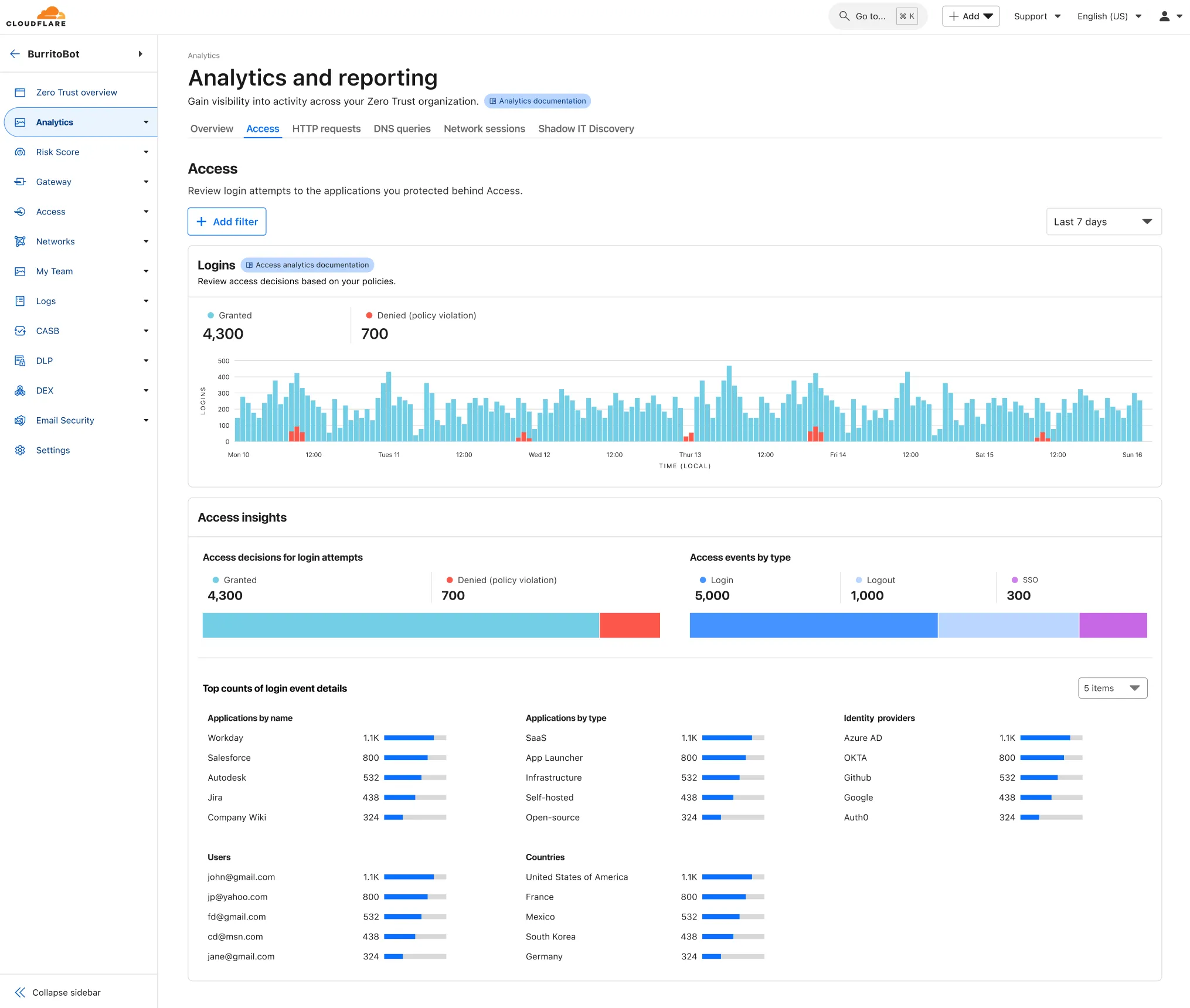
A new Access Analytics dashboard is now available to all Cloudflare One customers. Customers can apply and combine multiple filters to dive into specific slices of their Access metrics. These filters include:

  • Logins granted and denied
  • Access events by type (SSO, Login, Logout)
  • Application name (Salesforce, Jira, Slack, etc.)
  • Identity provider (Okta, Google, Microsoft, onetimepin, etc.)
  • Users (chris@cloudflare.com, sally@cloudflare.com, rachel@cloudflare.com, etc.)
  • Countries (US, CA, UK, FR, BR, CN, etc.)
  • Source IP address
  • App type (self-hosted, Infrastructure, RDP, etc.)
Access Analytics

To access the new overview, log in to your Cloudflare Zero Trust dashboard and find Analytics in the side navigation bar.

Dark Mode for Zero Trust Dashboard

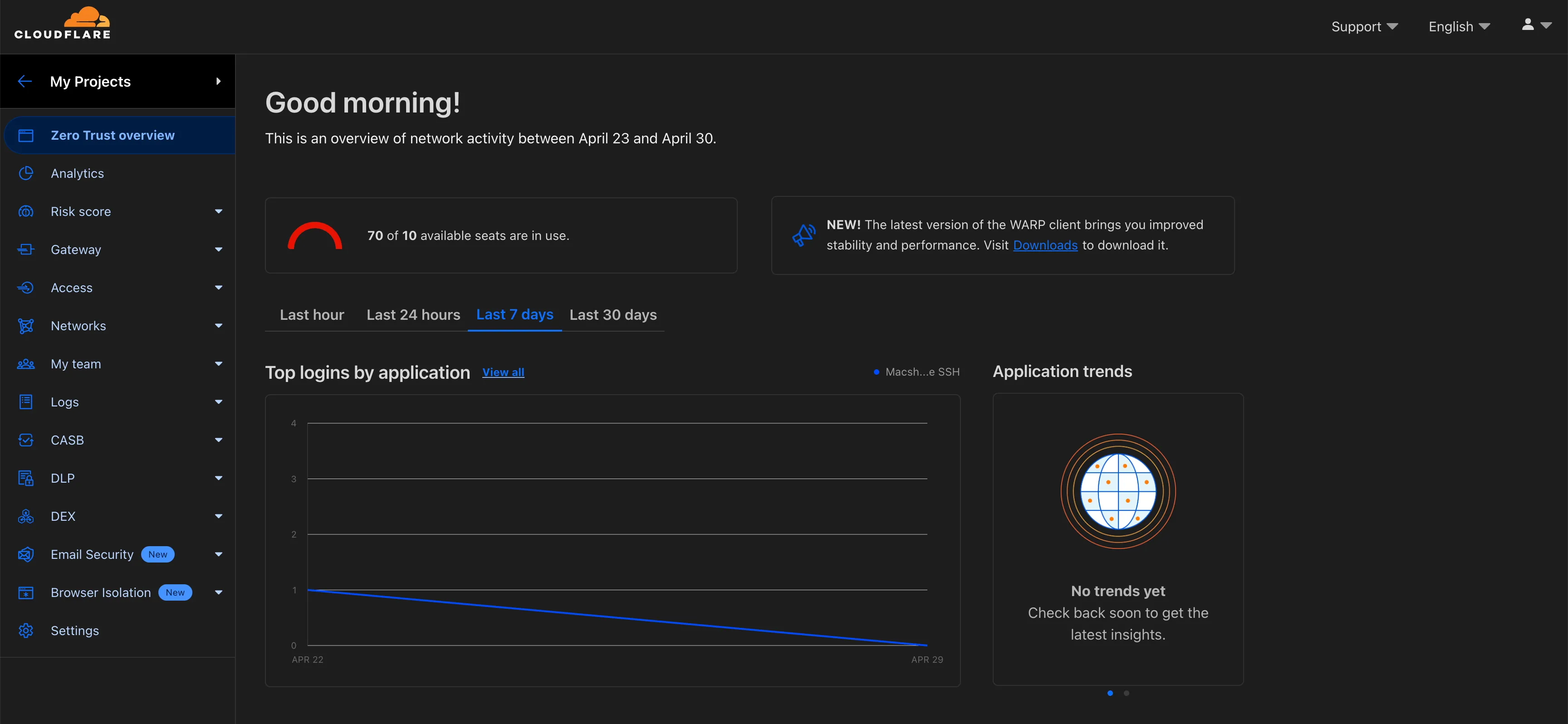
The Cloudflare Zero Trust dashboard now supports Cloudflare's native dark mode for all accounts and plan types.

Zero Trust Dashboard will automatically accept your user-level preferences for system settings, so if your Dashboard appearance is set to 'system' or 'dark', the Zero Trust dashboard will enter dark mode whenever the rest of your Cloudflare account does.

Zero Trust dashboard supports dark mode

To update your view preference in the Zero Trust dashboard:

  1. Log into the Zero Trust dashboard.
  2. Select your user icon.
  3. Select Dark Mode.

To update your view preference in the Core dashboard:

  1. Log into the Cloudflare dashboard.
  2. Go to My Profile
  3. For Appearance, choose Dark.

Configure your Magic WAN Connector to connect via static IP assignment

You can now locally configure your Magic WAN Connector to work in a static IP configuration.

This local method does not require having access to a DHCP Internet connection. However, it does require being comfortable with using tools to access the serial port on Magic WAN Connector as well as using a serial terminal client to access the Connector's environment.

For more details, refer to WAN with a static IP address.