The Images binding is now billed per unique transformation, matching the model already used for URL-based transformations. Repeat requests for the same combination of source image and parameters within the same calendar month are counted only once.
Previously, every call to the binding counted as a separate transformation regardless of whether the image or parameters were unique. With this change, you can call the binding on hot paths without paying for each individual request.
Use the Images binding to upload, list, retrieve, update, and delete images stored in Images directly from your Worker without managing API tokens or making HTTP requests.
The env.IMAGES.hosted namespace supports the following storage and management operations:
RealtimeKit lets you build products where people meet over live audio and video — such as HealthTech, EdTech, proctoring, and other real-time platforms — on Cloudflare's global WebRTC infrastructure.
Post-meeting transcription is now Generally Available, so completed RealtimeKit meetings can automatically produce full transcript files after they end. Those transcripts can also power AI-generated summaries for meeting notes, review workflows, and follow-up tasks after the transcript is available.
Post-meeting transcription is a managed service powered by Workers AI using Whisper Large v3 Turbo. RealtimeKit handles transcription processing and can return transcript and summary files through webhooks or the REST API, so you do not need to run your own transcription infrastructure.
Generate transcripts and summaries
To generate a transcript after a meeting ends, set transcribe_on_end: true when creating a meeting. To also generate an AI summary automatically after the transcript is available, set summarize_on_end: true:
When RealtimeKit finishes processing a meeting, it creates download URLs for the transcript and, if summarize_on_end is set, the summary. You can receive those URLs automatically with webhooks, or fetch them later for a specific session with the REST API.
To receive results as soon as they are ready, configure the meeting.transcript and meeting.summary webhook events:
When you use the WebSocket adapter to stream WebRTC media to a WebSocket endpoint, the adapter now auto-reconnects and buffers audio and video after brief endpoint disconnects or restarts.
Streaming WebRTC media to WebSocket endpoints
Many teams also use Realtime SFU as the media layer for backend applications, such as transcription, recording, note-taking, and agentic media-processing services. These systems often need to consume live WebRTC audio or video from the SFU in backend infrastructure, including Durable Objects, Workers, Containers, or external services, without running a WebRTC client themselves.
When you use the WebSocket adapter in Stream mode (egress) to send live audio or video from the SFU to your own WebSocket endpoint, the SFU now automatically reconnects after brief endpoint disconnects or restarts. This is especially helpful for long-running media pipelines where the WebSocket endpoint may briefly restart while a recording, transcription, or live analysis job is still in progress.
Previously, a brief disconnect from your WebSocket endpoint could close the adapter and require your application to recreate it before media could resume. Now, the SFU retries the same endpoint for up to 5 seconds with no API change required. If the endpoint comes back within that window, audio and video delivery resumes automatically.
The reconnect behavior also includes live-first media buffering, so brief interruptions reduce media loss without replaying stale video.
Reconnect behavior
During reconnect:
Audio uses a short bounded backlog to reduce audible loss. If the interruption lasts longer than the backlog can cover, older audio may be dropped.
You can now record specific participant audio tracks in RealtimeKit with track recording. Track recording creates separate WebM files for each participant instead of a single composite recording, which is useful for post-processing, transcription, and regulated or content-sensitive workflows.
To record specific participants, pass user_ids when starting a track recording:
To pass user_ids for selective track recording, use the following minimum SDK versions:
Web Core: @cloudflare/realtimekit version 1.4.0 or later
Web UI Kit: @cloudflare/realtimekit-ui, @cloudflare/realtimekit-react-ui, or @cloudflare/realtimekit-angular-ui version 1.1.2 or later
Android Core or iOS Core: version 2.0.0 or later
Android UI Kit or iOS UI Kit: version 1.1.0 or later
RealtimeKit provides SDKs and UI components so that you can build your own meeting experience on Cloudflare's global WebRTC infrastructure. Teams today build products ranging from telehealth to education on RealtimeKit for global audiences. You can get started today with our Quickstart or take a look at our Cloudflare Meet repo ↗ as a reference.
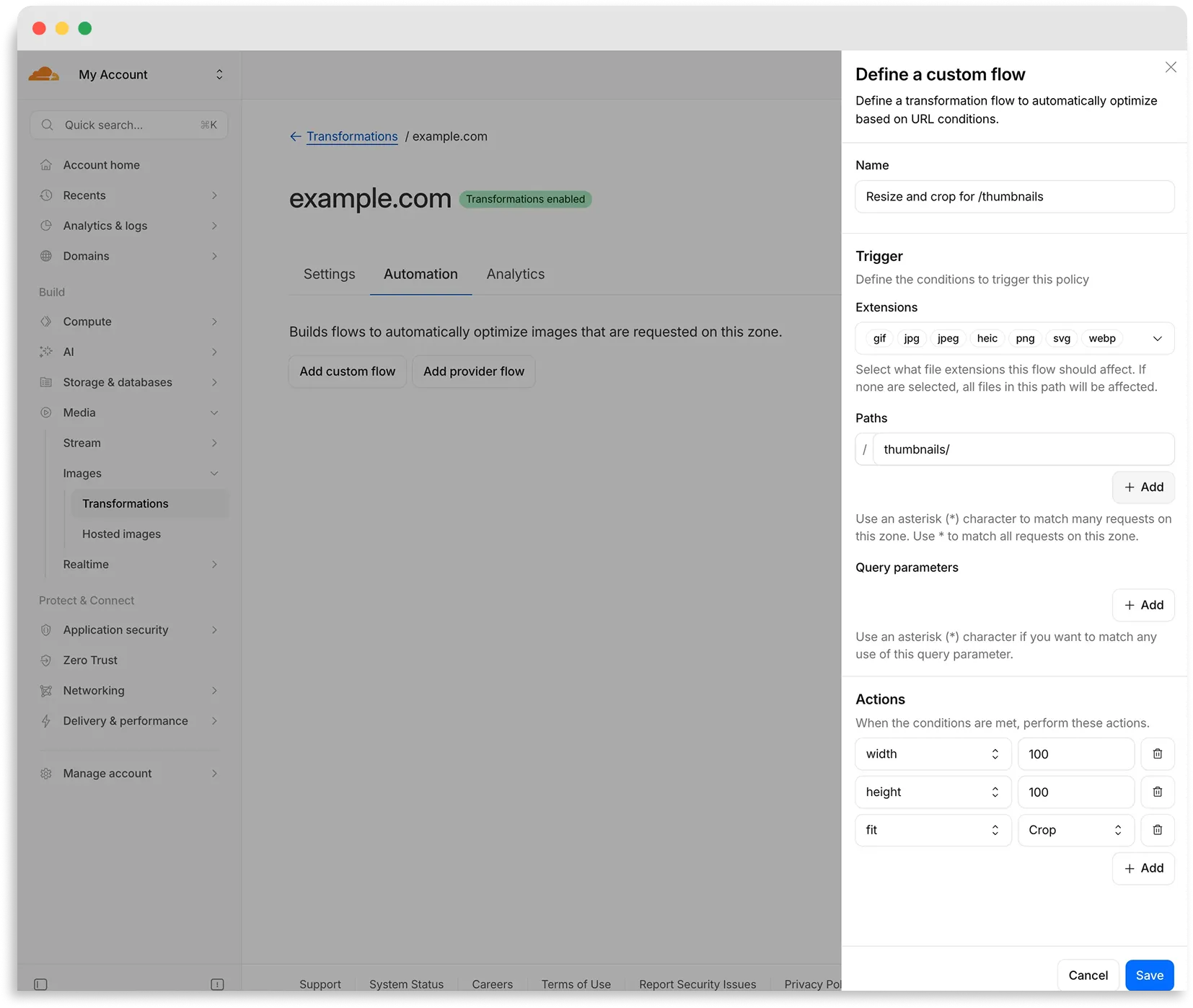
Flows are automated rules that pair conditions (such as file extension, URL path, or query parameter) with parameters. Set up a flow to automatically apply image optimization to matching requests on your zone without writing code or changing URLs.
There are two modes for transformation flows:
Provider flows — Migrate from another image optimization service. Your existing URLs continue to work while Cloudflare rewrites provider-specific parameters to their Cloudflare equivalents. Currently, Cloudflare supports provider flows for Fastly Image Optimizer.
Custom flows — Define your own conditions and actions for use cases like automatic format conversion, responsive sizing with width=auto, or directory-based optimization.
To get started, go to Images > Transformations > Automation in the Cloudflare dashboard ↗.
You can now interact with your Stream video library using new bindings for Workers! This allows customers to upload content to Stream, provision direct uploads, manage videos, and generate signed URLs from a Worker without making authenticated API calls. We're excited to bring Stream and Workers closer together to empower more programmatic pipelines, tighter integrations, and support generative AI and inference workloads.
Use the Stream binding when you want to:
Upload videos from URLs or create basic direct upload links for end users
Generate signed playback tokens without managing signing keys
Manage video metadata, captions, downloads, and watermarks
Build video pipelines entirely within Workers
To get started, add the Stream binding to your Wrangler configuration:
Generate a video with AI and upload directly to Stream or send a URL of a file you already have:
const aiResponse = await env.AI.run( "google/veo-3.1", { prompt: "A dog walking next to a river", duration: "10s", aspect_ratio: "16:9", resolution: "1080p", generate_audio: true, }, { gateway: { id: "experiments" }, },);// Veo will return a URL of the generated asset.const videoUrl = aiResponse.result.video;// Alternative option: a video of the Austin Office mobile// const videoUrl = 'https://pub-d9fcbc1abcd244c1821f38b99017347f.r2.dev/aus-mobile.mp4';// Upload to Stream by providing a URLconst streamVideo = await env.STREAM.upload(videoUrl);// The streamVideo response will include the video ID, playback and manifest// URLs, and other information, just like the REST API.
const aiResponse = await env.AI.run( 'google/veo-3.1', { prompt: 'A dog walking next to a river', duration: '10s', aspect_ratio: '16:9', resolution: '1080p', generate_audio: true, }, { gateway: { id: 'experiments' }, },);// Veo will return a URL of the generated asset.const videoUrl = aiResponse.result.video;// Alternative option: a video of the Austin Office mobile// const videoUrl = 'https://pub-d9fcbc1abcd244c1821f38b99017347f.r2.dev/aus-mobile.mp4';// Upload to Stream by providing a URLconst streamVideo = await env.STREAM.upload(videoUrl);// The streamVideo response will include the video ID, playback and manifest// URLs, and other information, just like the REST API.
Generate a signed URL without using a signing key or an API call:
const video_id = "ce800be43a9772f4bb02f35b860fb516";const token = await env.STREAM.video(video_id).generateToken();// Use the "token" in an iframe embed code, manifest URL, or thumbnail:const embedUrl = `https://customer-igynxd2rwhmuoxw8.cloudflarestream.com/${token}/iframe`;
const video_id = 'ce800be43a9772f4bb02f35b860fb516';const token = await env.STREAM.video(video_id).generateToken();// Use the "token" in an iframe embed code, manifest URL, or thumbnail:const embedUrl = `https://customer-igynxd2rwhmuoxw8.cloudflarestream.com/${token}/iframe`;
For setup instructions and the full API reference, refer to Bind to Workers API.
Get started with your Agent
Add a binding for Cloudflare Stream (env.STREAM). On the watch page, use the
Stream binding to get info based on the ID, and leverage video.meta.name as
the page title.
You can now use a Workers binding to transform videos with Media Transformations. This allows you to resize, crop, extract frames, and extract audio from videos stored anywhere, even in private locations like R2 buckets.
The Media Transformations binding is useful when you want to:
Transform videos stored in private or protected sources
Optimize videos and store the output directly back to R2 for re-use
Extract still frames for classification or description with Workers AI
Extract audio tracks for transcription using Workers AI
To get started, add the Media binding to your Wrangler configuration:
During a meeting, participant audio is routed through AI Gateway to Nova-3 on Workers AI — so transcription runs on Cloudflare's network end-to-end, reducing latency compared to routing through external speech-to-text services.
Set the language when creating a meeting via ai_config.transcription.language:
Supported languages include English, Spanish, French, German, Hindi, Russian, Portuguese, Japanese, Italian, and Dutch — with regional variants like en-AU, en-GB, en-IN, en-NZ, es-419, fr-CA, de-CH, pt-BR, and pt-PT. Use multi for automatic multilingual detection.
If you are building voice agents or real-time translation workflows, your agent can now transcribe in the caller's language natively — no extra services or routing logic needed.
You can now disable a live input to reject incoming RTMPS and SRT
connections. When a live input is disabled, any broadcast attempts will fail to
connect.
This gives you more control over your live inputs:
Temporarily pause an input without deleting it
Programmatically end creator broadcasts
Prevent new broadcasts from starting on a specific input
To disable a live input via the API, set the enabled property to false:
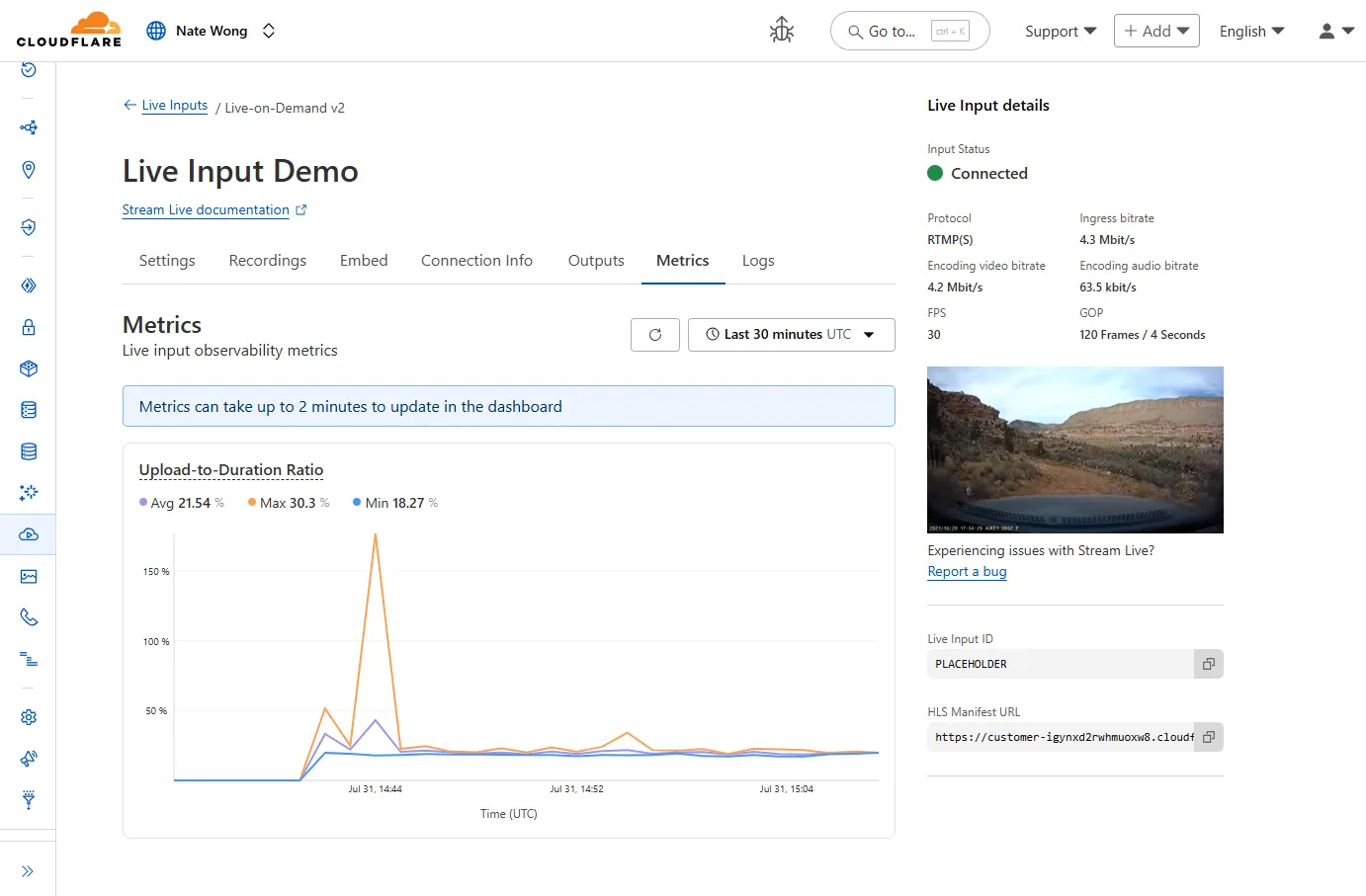
New information about broadcast metrics and events is now available in
Cloudflare Stream in the Live Input details of the Dashboard.
You can now easily understand broadcast-side health and performance with new
observability, which can help when troubleshooting common issues, particularly
for new customers who are just getting started, and platform customers who may
have limited visibility into how their end-users configure their encoders.
To get started, start a live stream (just getting started?), then visit the Live Input details page in Dash.
See our new live Troubleshooting guide
to learn what these metrics mean and how to use them to address common broadcast
issues.
We now support audio mode! Use this feature to extract audio from a source video, outputting
an M4A file to use in downstream workflows like AI inference, content moderation, or transcription.
For example,
Example URLtext
https://example.com/cdn-cgi/media/<OPTIONS>/<SOURCE-VIDEO>https://example.com/cdn-cgi/media/mode=audio,time=3s,duration=60s/<input video with diction>
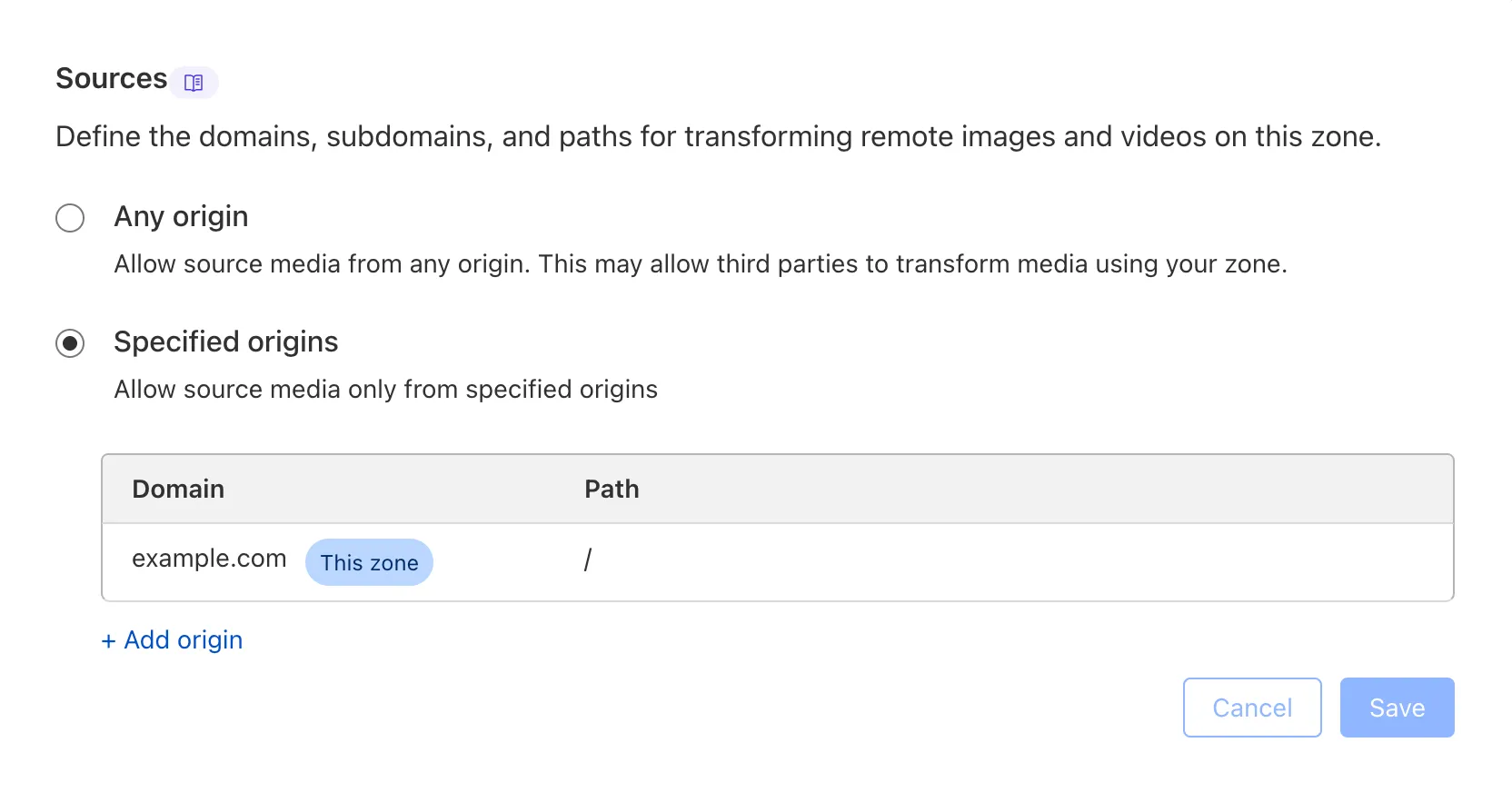
We are adding source origin restrictions to
the Media Transformations beta. This allows customers to restrict what sources
can be used to fetch images and video for transformations. This feature is the
same as --- and uses the same settings as ---
Image Transformations sources.
When transformations is first enabled, the default setting only allows
transformations on images and media from the same website or domain being used to make
the transformation request. In other words, by default, requests to
example.com/cdn-cgi/media can only reference originals on example.com.
Adding access to other sources, or allowing any source,
is easy to do
in the Transformations tab under Stream. Click each domain enabled for
Transformations and set its sources list to match the needs of your content. The
user making this change will need permission to edit zone settings.
Cloudflare Stream has completed an infrastructure upgrade for our Live WebRTC beta support which brings increased scalability and improved playback performance to all customers. WebRTC allows broadcasting directly from a browser (or supported WHIP client) with ultra-low latency to tens of thousands of concurrent viewers across the globe.
Additionally, as part of this upgrade, the WebRTC beta now supports Signed URLs to protect playback, just like our standard live stream options (HLS/DASH).
Today, we are thrilled to announce Media Transformations, a new service that
brings the magic of Image Transformations to
short-form video files, wherever they are stored!
For customers with a huge volume of short video — generative AI output,
e-commerce product videos, social media clips, or short marketing content —
uploading those assets to Stream is not always practical. Sometimes, the
greatest friction to getting started was the thought of all that migrating.
Customers want a simpler solution that retains their current storage strategy to
deliver small, optimized MP4 files. Now you can do that with Media
Transformations.
To transform a video or image,
enable transformations for your
zone, then make a simple request with a specially formatted URL. The result is
an MP4 that can be used in an HTML video element without a player library.
If your zone already has Image Transformations enabled, then it is ready to
optimize videos with Media Transformations, too.
For example, we have a short video of the mobile in Austin's office. The
original is nearly 30 megabytes and wider than necessary for this layout.
Consider a simple width adjustment:
The result is less than 3 megabytes, properly sized, and delivered dynamically
so that customers do not have to manage the creation and storage of these
transformed assets.
This allows more fine-grained control over transformation request flows and cache behavior. For example, you can resize, manipulate, and overlay images without requiring them to be accessible through a URL.
The Images binding can be configured in the Cloudflare dashboard for your Worker or in the Wrangler configuration file in your project's directory:
{ "images": { "binding": "IMAGES", // i.e. available in your Worker on env.IMAGES },}
[images]binding = "IMAGES"
Within your Worker code, you can interact with this binding by using env.IMAGES.
Here's how you can rotate, resize, and blur an image, then output the image as AVIF:
const info = await env.IMAGES.info(stream);// stream contains a valid image, and width/height is available on the info objectconst response = ( await env.IMAGES.input(stream) .transform({ rotate: 90 }) .transform({ width: 128 }) .transform({ blur: 20 }) .output({ format: "image/avif" })).response();return response;
Previously, all viewers watched "the live edge," or the latest content of the
broadcast, synchronously. If a viewer paused for more than a few seconds,
the player would automatically "catch up" when playback started again. Seeking
through the broadcast was only available once the recording was available after
it concluded.
Starting today, customers can make a small adjustment to the player
embed or manifest URL to enable the DVR experience for their viewers. By
offering this feature as an opt-in adjustment, our customers are empowered to
pick the best experiences for their applications.
When building a player embed code or manifest URL, just add dvrEnabled=true as
a query parameter. There are some things to be aware of when using this option.
For more information, refer to DVR for Live.
Stream's generated captions
leverage Workers AI to automatically transcribe audio and provide captions to
the player experience. We have added support for these languages: